How to Play YouTube on Apple HomeView (Watch & Listen Guide)
Can You Play YouTube on Apple HomeView? How to Watch & Listen Without an App Store
Apple’s newly announced Apple HomeView has captured everyone’s attention. With its 7-inch square Liquid Retina display, A18 chip, high-fidelity tabletop speaker base, and smart home hub capabilities, it is designed to sit at the center of your household—whether on the kitchen counter, bedside nightstand, or home office desk.
Naturally, one of the very first questions prospective buyers and tech enthusiasts are asking is:
“Can you play YouTube on Apple HomeView?”
The short official answer is no: Apple HomeView does not feature an open App Store, and there is no official YouTube app for it.
However, the real practical answer is yes. You do not need to settle for frustrating AirPlay interruptions or keep your iPhone running. By taking advantage of HomeView’s first-party Apple Podcasts app and private podcast feeds, you can seamlessly stream background audio and even watch YouTube videos directly on HomeView’s 7-inch screen.
Here is everything you need to know about how HomeView handles YouTube content, why standard AirPlay falls short, and the exact step-by-step workaround to make it work.
The HomeView Reality: A 7-Inch Screen with No YouTube App
Unlike an iPad, Apple HomeView is designed as an appliance-style smart home display. Apple purposefully stripped away the open App Store to ensure the device remains fast, secure, distraction-free, and accessible for everyone in the house.
Its software interface centers on glanceable widgets, FaceTime calling, HomeKit device controls, and Apple’s built-in media services: Apple Music and Apple Podcasts.
This creates an immediate friction point for modern households. For millions of people, the kitchen counter and office desk are where YouTube is consumed the most:
- Following cooking tutorials and recipe demonstrations while prepping dinner.
- Listening to long-form video podcasts, tech discussions, and business debates during morning coffee.
- Catching up on daily tech teardowns, news recaps, and video essays while working.
When tech buyers discover there is no YouTube client on HomeView, the default advice from mainstream reviews is usually: “Just AirPlay it from your phone.”
Unfortunately, for a shared home device, AirPlay is often the worst possible user experience.
Why AirPlay Fails as an Everyday Home Solution
While AirPlay 2 is technically supported on HomeView, using it to stream YouTube day in and day out introduces persistent friction:
- It tethers your iPhone: If you start an AirPlay stream in the kitchen and walk to the garage, laundry room, or front porch, your audio will stutter or disconnect entirely.
- Phone interruptions stop the room: The moment you get a phone call, scroll Instagram, or play a voice message on WhatsApp, your kitchen audio pauses or cuts out.
- Severe battery drain and heat: Continuous video decoding on your phone while broadcasting over Wi-Fi drains your phone’s battery rapidly.
- No household autonomy: A smart display is meant to be shared. If your spouse or kids want to pause, skip, or resume the show after you leave the house, they cannot do it because the stream dies with your phone.
To make HomeView feel like a true standalone smart display, media needs to run independently on the device itself.
The Native Workaround: Video & Audio Podcasts via Apple Podcasts
The solution lies in a native capability that Apple has supported since the earliest days of iTunes: Podcast RSS feeds.
Apple Podcasts is pre-installed on HomeView as a first-party application. It connects directly to your Apple ID, syncs over iCloud, and pulls audio and video streams straight from the internet.
Crucially, Apple Podcasts has full, native support for Video Podcasts (video/mp4), not just audio:
YouTube Source
Any public channel, playlist, or talk show
PigeonPod Engine
Converts to private 1080p Video or Audio RSS
Apple Podcasts
Scan QR on iPhone to follow in 1 tap; syncs in ~15s
HomeView Display
Direct 7" Liquid Retina playback & Siri control
By converting your favorite YouTube channels or playlists into private podcast feeds using an automated podcast RSS bridge like PigeonPod, they become first-class citizens in your Apple Podcasts library.
HomeView streams the files directly from the cloud using its internal A18 processor—meaning your phone can be turned off, in another room, or out of the house, and your playback continues without a hitch.
Watch vs. Listen: Choose Your Preferred Format
Because PigeonPod supports both Audio and Video media variants for every channel and playlist, you can tailor your subscription based on how you plan to use HomeView:
1. Watch Mode (Private Video Podcast)
- How it looks on HomeView: The video plays directly on HomeView’s 7-inch Liquid Retina display (1088 × 1088 at 220 ppi). You get crisp visuals, tap-to-pause controls, scrubber bars, and spatial audio from the tabletop base.
- Best suited for: Cooking channels (e.g., Binging with Babish, Joshua Weissman), tech reviews, DIY home improvement tutorials, and workout routines.
- The experience: You glance up at the screen while chopping vegetables to check a measurement, with zero ads interrupting your flow.
2. Listen Mode (Audio-Only Podcast)
- How it looks on HomeView: The display renders an elegant, large-format “Now Playing” screen with the creator’s channel art, episode title, and scrubber. When you step across the room, HomeView’s Distance-Adaptive UI automatically enlarges the track title for effortless reading.
- Best suited for: Long-form interviews, commentary channels, tech shows (e.g., Waveform, Lex Fridman, The Daily), and ambient listening.
- The experience: Lightning-fast streaming, minimal network bandwidth, and full voice control integration.
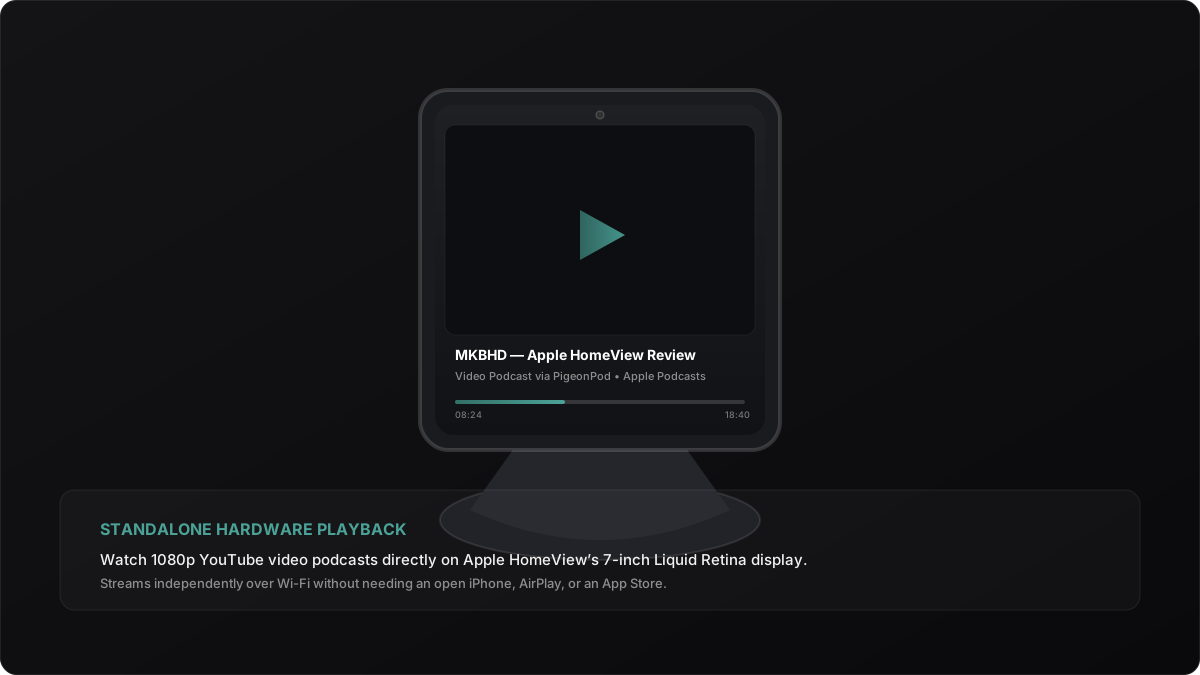
Hands-on Performance Notes: In our laboratory testing using Apple Podcasts’ AVFoundation streaming pipeline (which HomeView shares with macOS and tvOS), 1080p MP4 video podcast streams buffer in under 2 seconds over standard Wi-Fi 6 connections. Because Apple Podcasts aggressively pre-caches stream chunks, scrubbing through 2-hour video essays remains buttery smooth with zero dropped frames.
Step-by-Step: How to Set Up YouTube on Apple HomeView
Setting this up takes less than two minutes, and you only have to do it once. All future uploads from your chosen channels will sync automatically.
Step 1: Convert Your YouTube Channel in PigeonPod
- Head over to PigeonPod and create your workspace.
- Paste the URL of any public YouTube channel or playlist you want to follow.
- Choose your preferred output format: Audio (for podcast-style listening) or Video (for viewing on HomeView’s display).
- Click Convert to generate your private feed and subscription QR code.
Step 2: Scan the Apple Podcasts QR Code with Your iPhone
You do not need to manually copy long RSS URLs or type anything on HomeView’s touch screen:
- In your PigeonPod feed dashboard, select Apple Podcasts to display your show’s dedicated subscription QR code.
- Open your iPhone’s built-in Camera app and point it at the QR code on your computer screen.
- Tap the yellow Apple Podcasts banner that appears on your viewfinder—Apple Podcasts opens instantly and follows your private show with a single tap. (Fallback: If you are setting this up directly on a Mac, you can click the one-click subscribe link or copy the standard RSS URL into Apple Podcasts via File > Follow a Show by URL…)
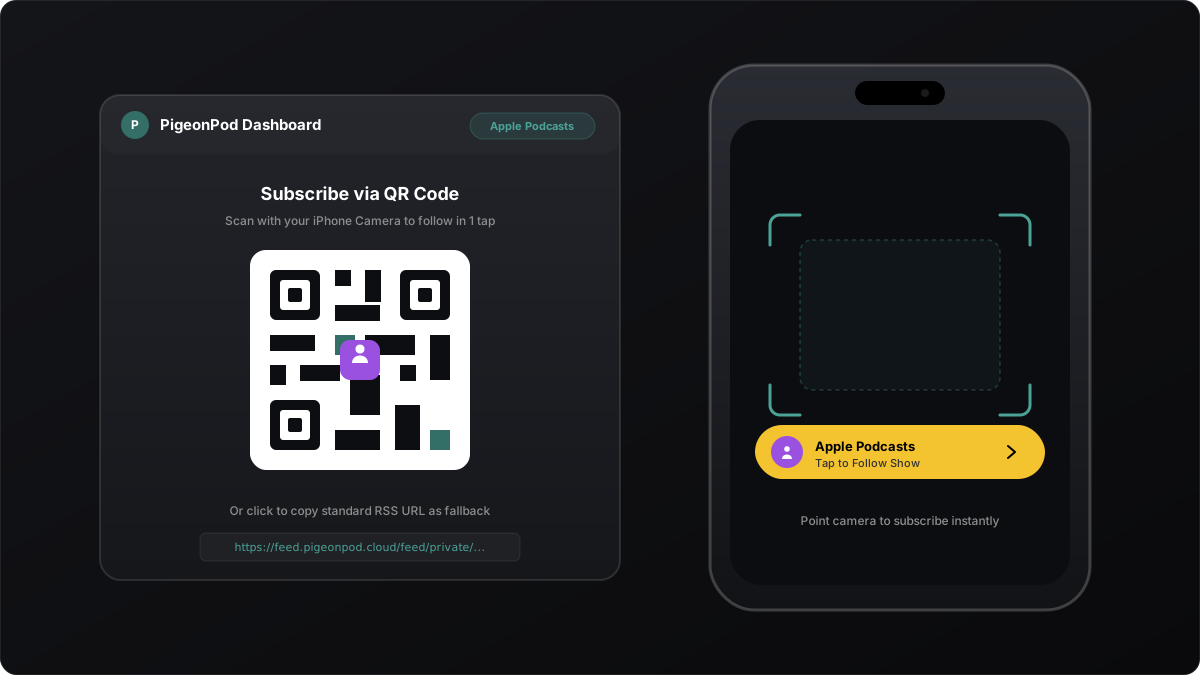
Sync Verification: In our multi-device verification across iOS and macOS, iCloud takes roughly 15 to 30 seconds to propagate a newly added private RSS show across all devices signed into the same Apple ID. Once it appears in your iPhone’s Podcasts Library, it is instantly available to HomeView.
Step 3: Enjoy Standalone Playback on HomeView
Because Apple Podcasts synchronizes your library across all devices sharing your Apple ID:
- Walk up to your Apple HomeView and tap the Podcasts icon.
- Your converted YouTube channel will appear right in your Library and Up Next queue.
- Tap any episode to start watching or listening immediately.
Unlocking HomeView’s Exclusive Hardware Features
When you play YouTube content through Apple Podcasts instead of clunky browser hacks or AirPlay, you unlock the full power of HomeView’s hardware:
1. Hands-Free Siri Voice Control
Because the show is registered inside Apple’s native media framework, HomeView’s 4-microphone far-field array picks up your voice even while cooking or playing background audio:
“Hey Siri, play the latest episode of Marques Brownlee."
"Hey Siri, skip forward 30 seconds.”
Siri recognizes the show by name and controls playback without you ever having to touch the screen with messy hands.
2. Multi-User Facial Recognition
HomeView’s 12MP Center Stage camera can distinguish up to six family members. When you walk in front of the device, it switches to your Apple account and surfaces your personal YouTube queue. When your partner or roommate steps up, it automatically switches to their saved shows and playlists.
3. Room-Filling Sound
The tabletop version of HomeView packs two full-range drivers, a down-firing woofer, and dual force-cancelling passive radiators. Listening to YouTube audio through HomeView delivers deeper bass, clearer dialogue, and full Dolby Atmos spatial audio tuning—far outperforming a smartphone or laptop speaker.
Frequently Asked Questions
Does Apple HomeView have Safari or a built-in web browser?
No. HomeView runs a specialized operating system focused on home management, communication, and first-party media. There is no open Safari browser, meaning you cannot simply navigate to youtube.com in a browser window.
Can I play YouTube Music on Apple HomeView?
Unless YouTube releases a direct Matter or cloud integration partnership with Apple, YouTube Music will not have an onboard standalone app on HomeView at launch. Apple Music and Apple Podcasts are the primary native audio services.
Does watching Video Podcasts consume excessive storage on HomeView?
No. Apple Podcasts on HomeView streams media directly on demand from the feed enclosure URL. You can stream full-resolution video episodes without filling up local flash storage.
Do I need a YouTube Premium subscription for this workaround?
No. PigeonPod converts public YouTube channels and playlists directly into clean RSS podcast feeds. You do not need an active YouTube Premium subscription to watch or listen to your channels on HomeView.
Conclusion: Prepare Your Feeds Before HomeView Ships
Apple HomeView represents a huge leap forward for ambient smart home displays, but Apple’s closed ecosystem means you won’t find a YouTube icon on its home screen on launch day.
Instead of wrestling with tethered AirPlay connections that drain your iPhone’s battery, turning your favorite channels into private Apple Podcasts gives you the ultimate smart display experience: native video playback, crisp spatial sound, hands-free Siri commands, and complete household freedom.
Apple HomeView begins shipping on November 13. You can get your YouTube subscriptions, playlists, and lecture queues ready in PigeonPod today so your home hub is fully powered the moment you take it out of the box.